
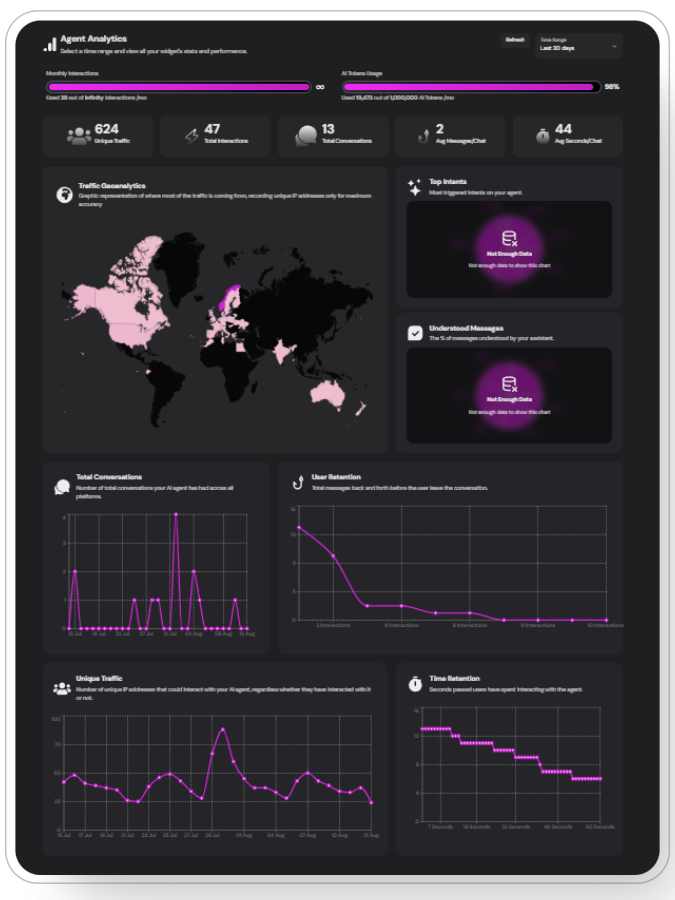
Key Metrics at a Glance
Monthly Interactions
Track the number of interactions your agent handles based on time filtering.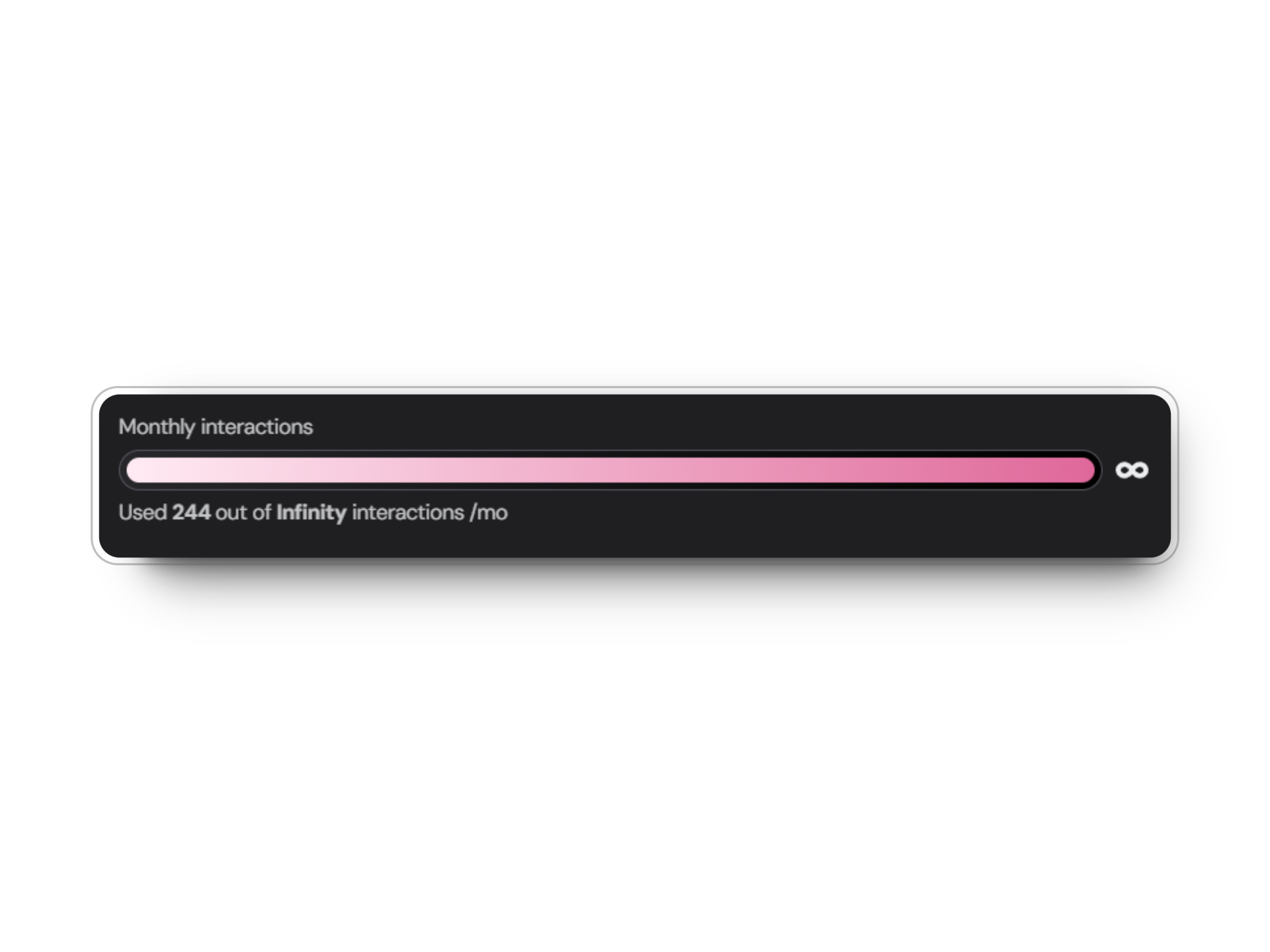
Custom limit can be set in the agent settings tab
AI Tokens Usage
Monitor the consumption of AI tokens to optimize costs and performance.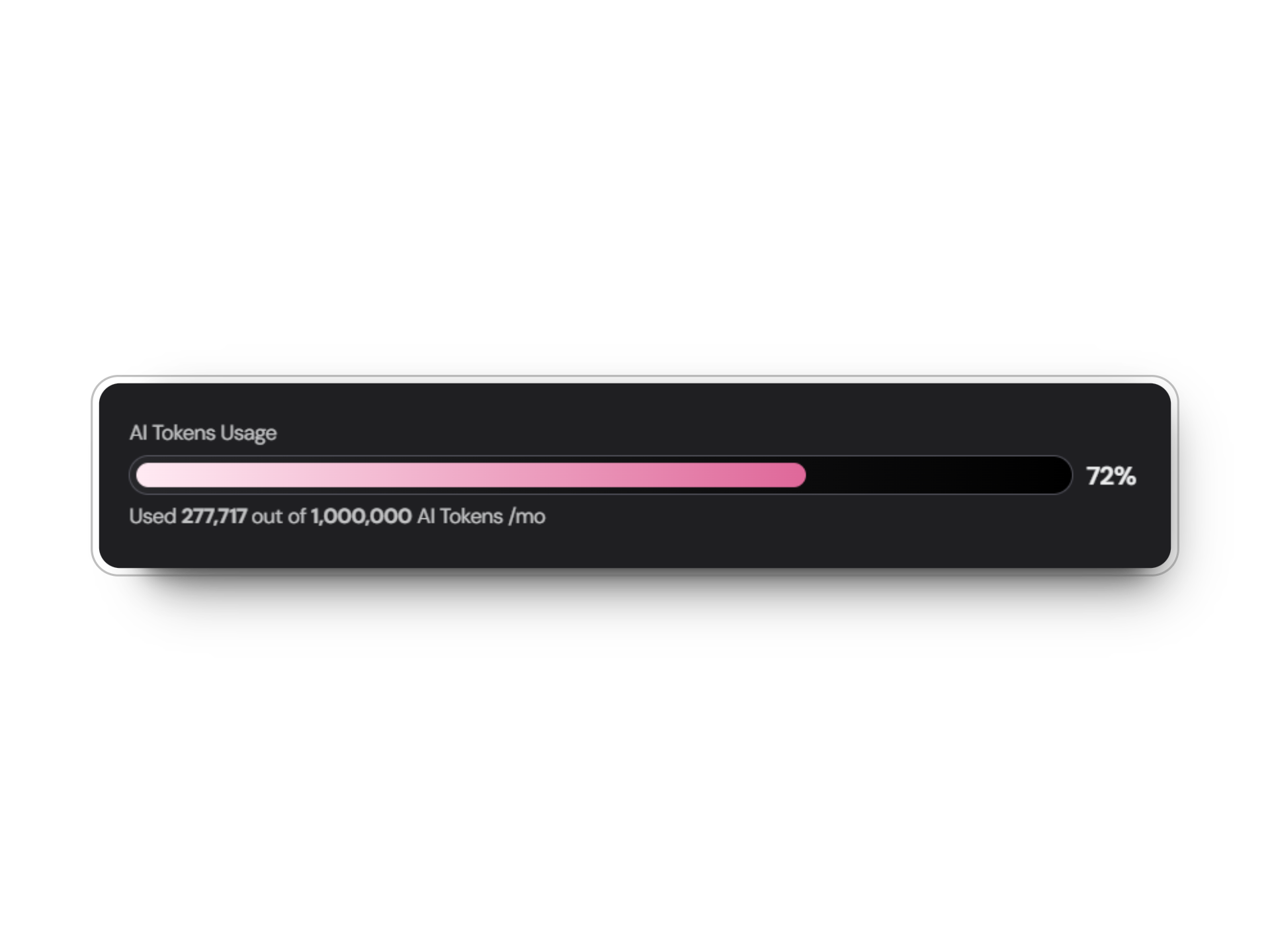
Custom limit can be set in the agent settings tab
Total Interactions
View the cumulative number of interactions over time.
Total Conversations
Keep track of the number of distinct conversations initiated with your agent.
Average Messages per Chat
Understand the average length and depth of conversations with your agent.
Average Seconds per Chat
Measure the efficiency of your agent by tracking the average duration of interactions.
The total interactions and total conversations are displayed as key metrics at the top of the Analytics tab and as graphs based on your selected time range.
Detailed Performance Metrics
User Retention
User Retention
Visualize user engagement with a graph showing the total messages exchanged before users leave the conversation. Measured by date and amount of interactions.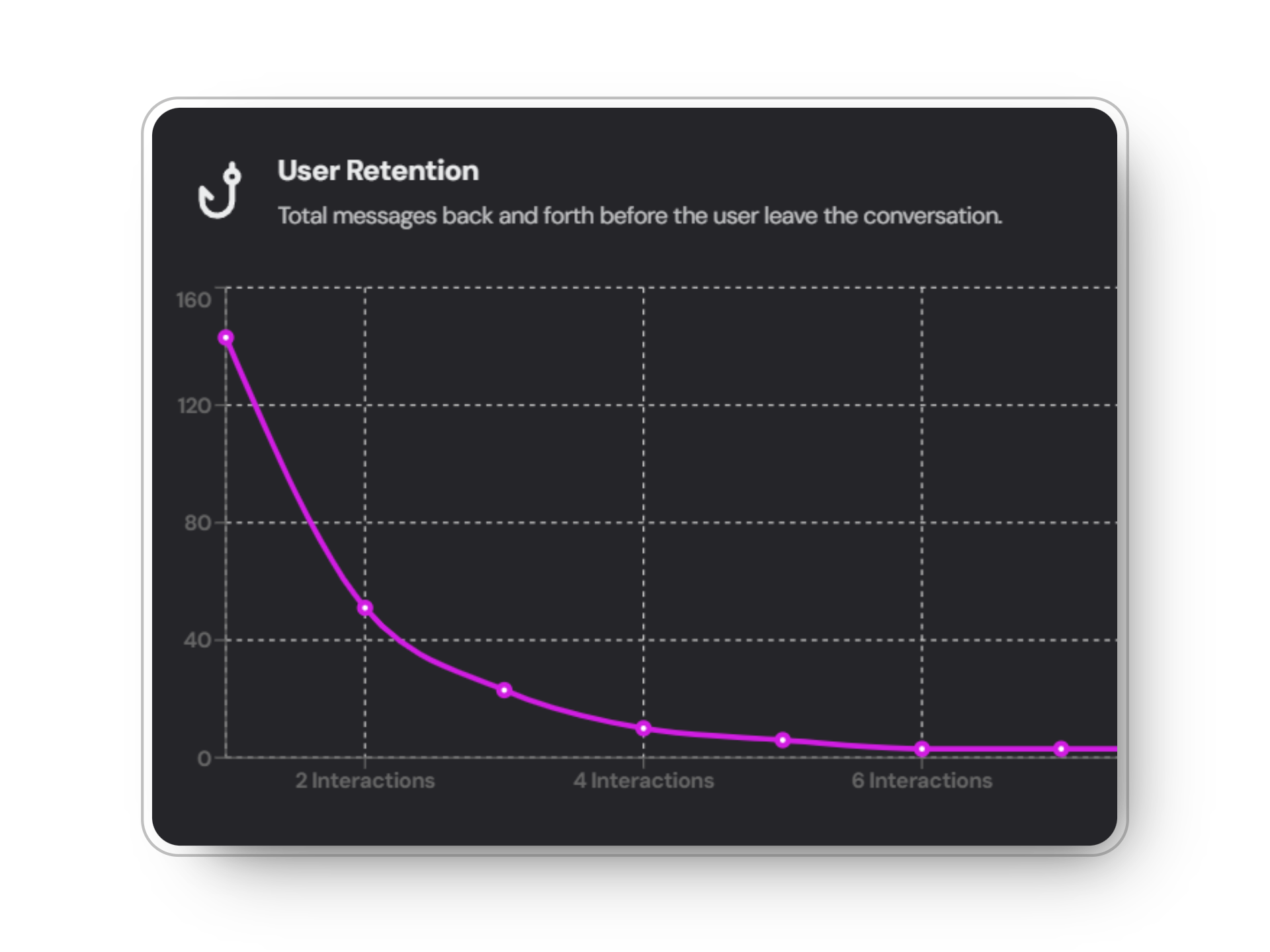
Time Retention
Time Retention
Analyze user engagement duration with a graph displaying the total seconds users spend interacting with your agent. Measured by amount of users and time spent.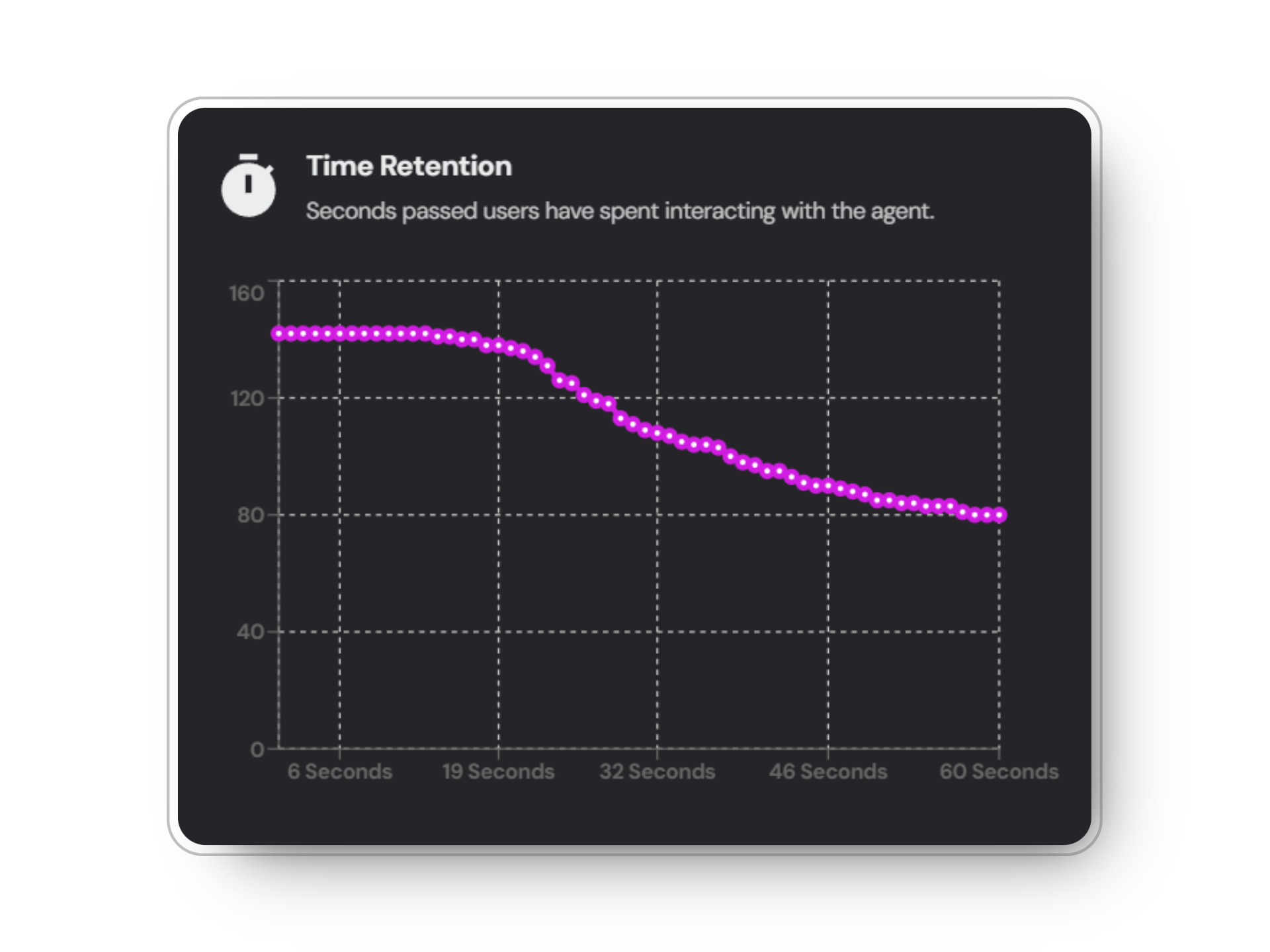
Total conversations over time
Total conversations over time
Analyze user conversations over time with your agent through a graph. Measure by amount of conversations and date based on your chosen time range.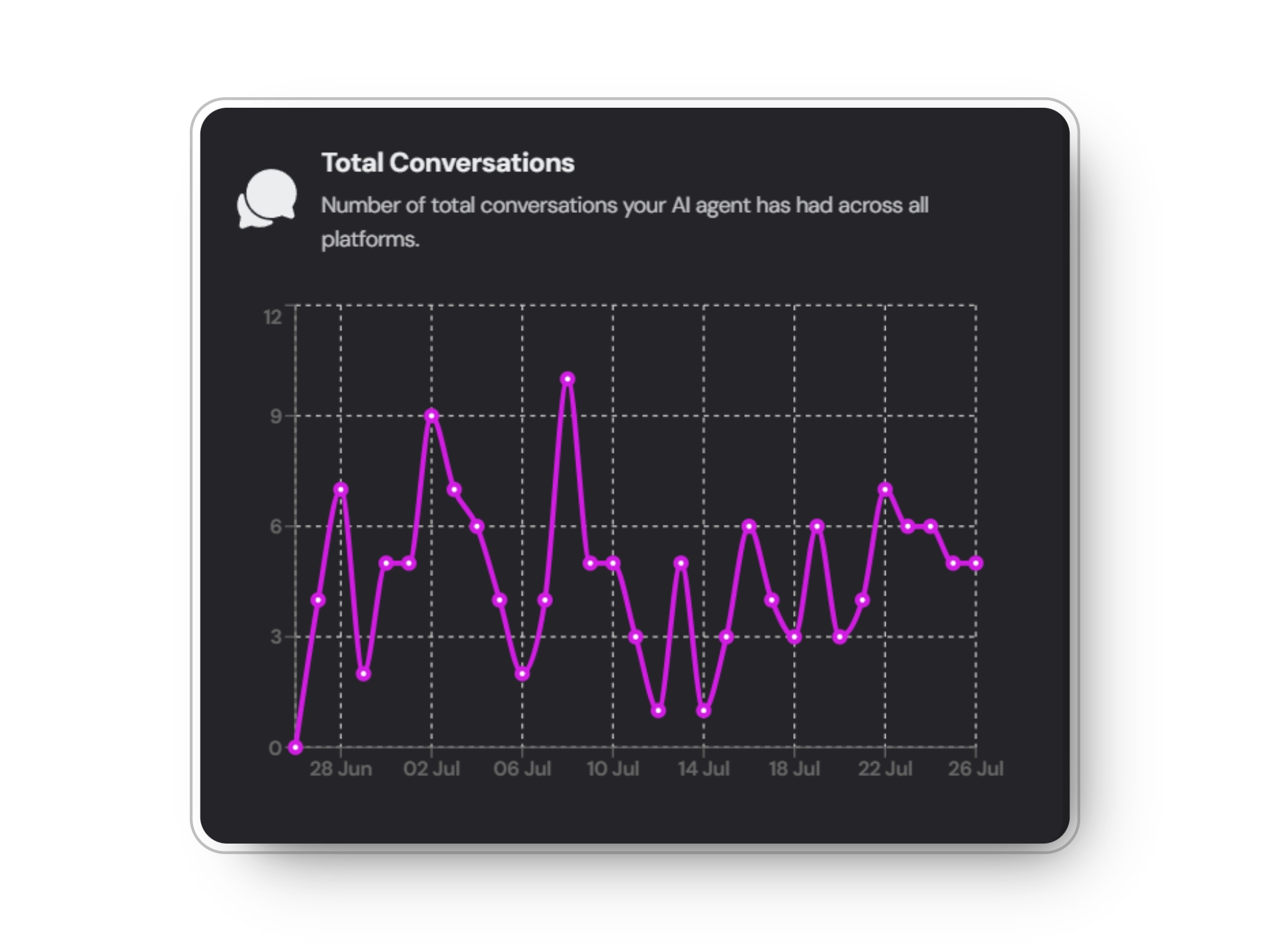
Geographic Insights
Enable GeoAnalytics in the settings tab of your agent to gain insights into the geographical distribution of your users:GeoAnalytics is an
optional feature that provides valuable location-based data about users interacting with your agent.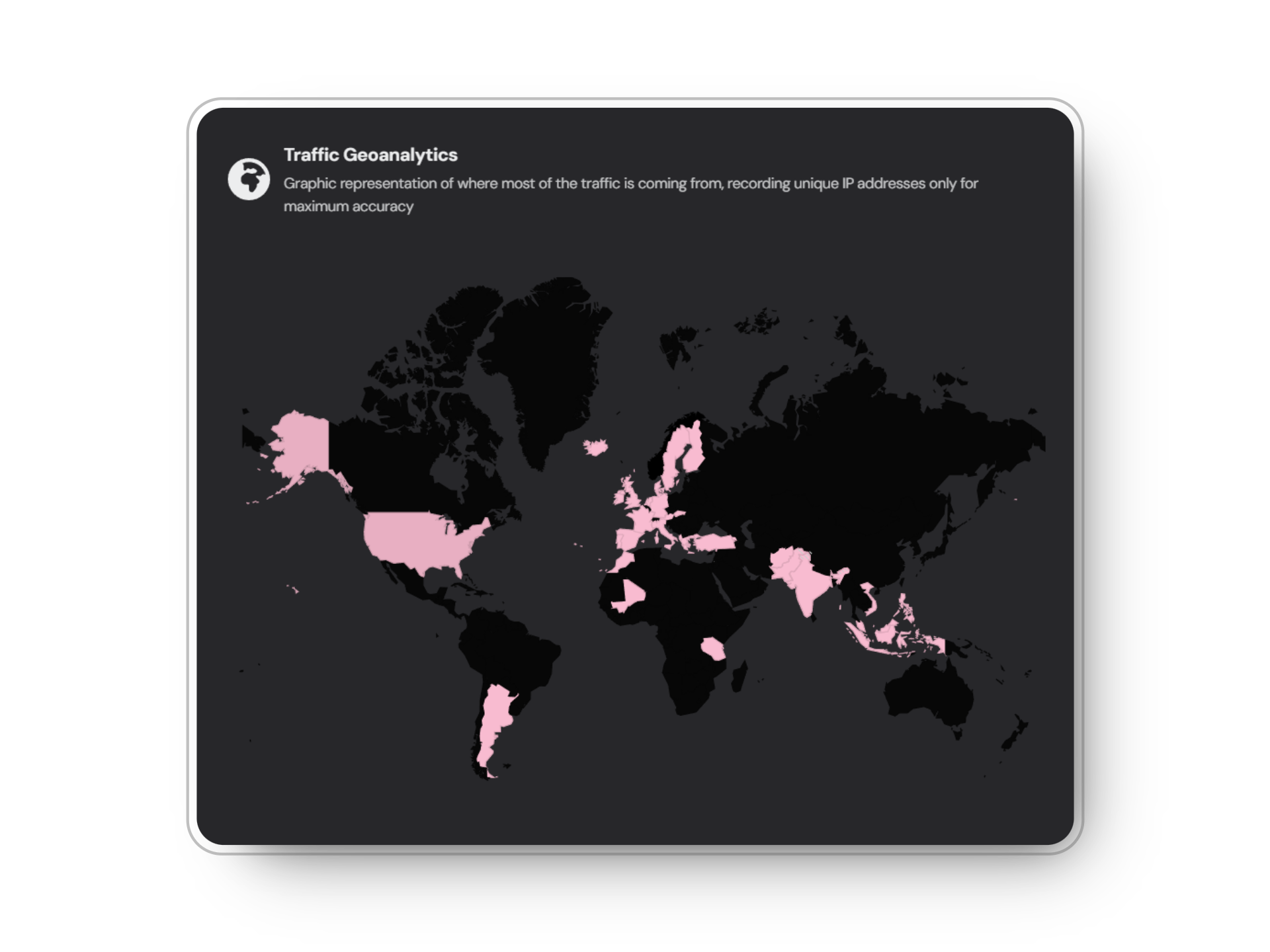 GeoAnalytics tracks unique website traffic, capturing all IPs that access your site. While it doesn’t directly measure agent usage, it provides insights into the total number of visitors, with a percentage of these visitors likely engaging in conversations with your agent.
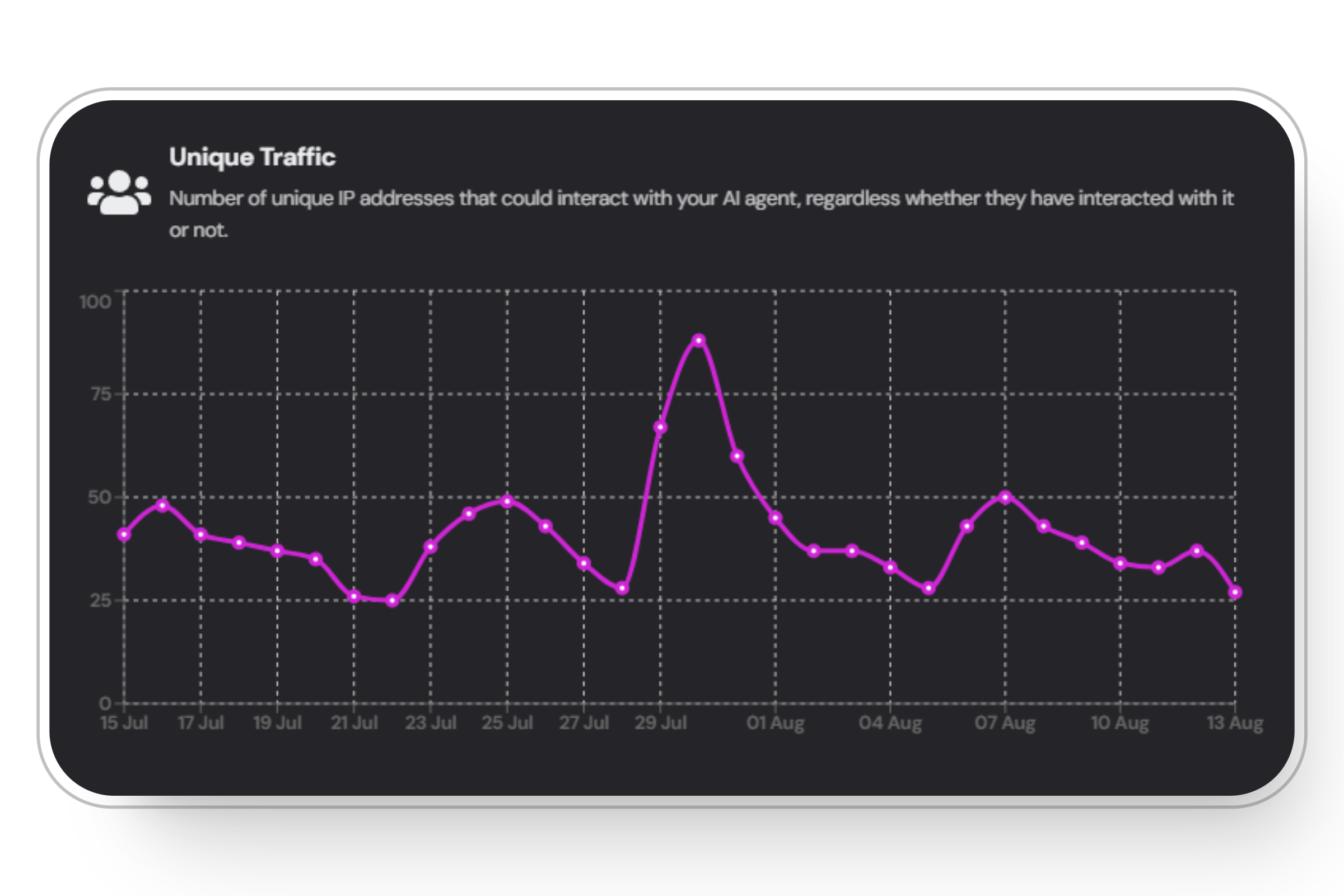
Unique traffic graph
Unique traffic graph
Voiceflow-Specific Analytics
If you’re using our Voiceflow integration, you’ll have access to additional analytics specific to the platform:Top Intents
Visualize the most frequently triggered intents in a pie chart. Hover over the specific pie pieces to see the intent name.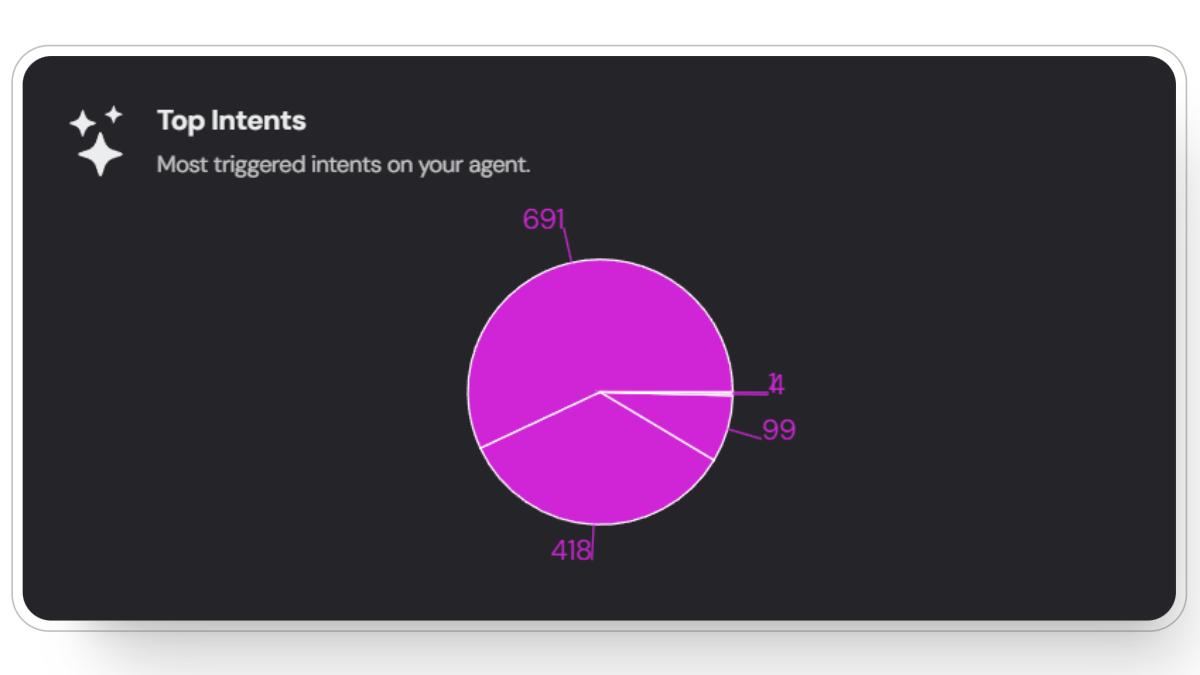
Understood Messages
See the percentage of messages successfully understood by your assistant. Green represents understood while red represents not understood messages by the voiceflow AI.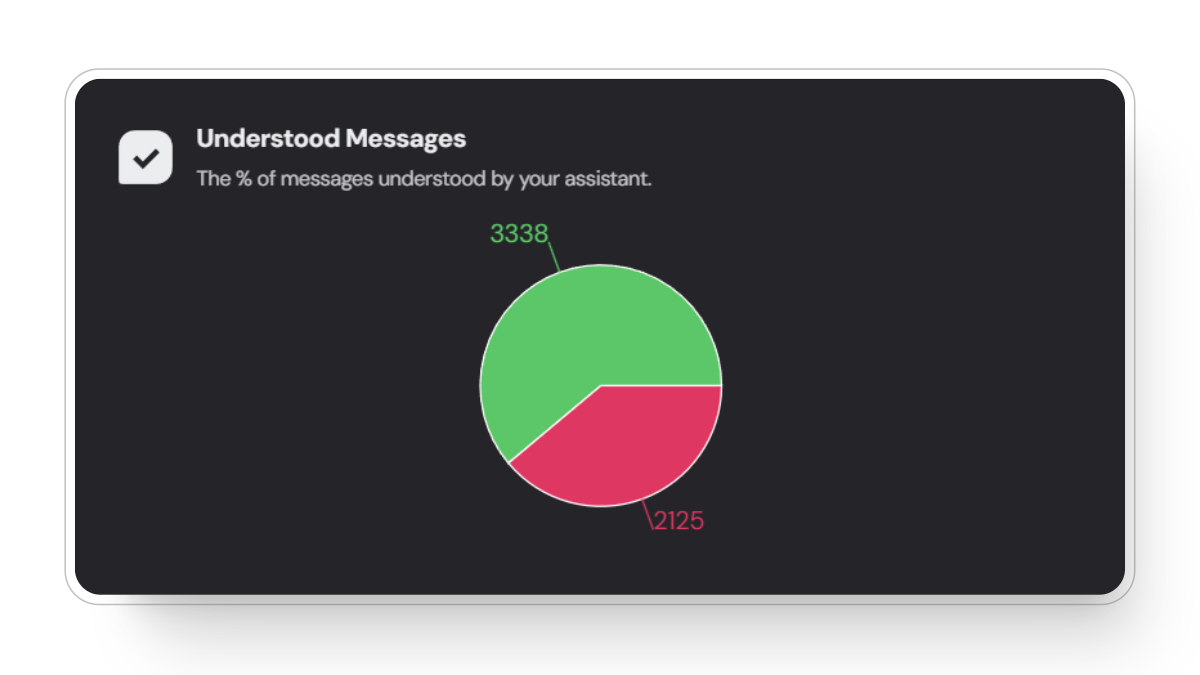
Interpreting Your Analytics
Understanding your analytics is crucial for optimizing your AI agent’s performance and enhancing user experience. By regularly reviewing these metrics, you can gain valuable insights into how users interact with your agent, identify areas for improvement, and make data-driven decisions to increase efficiency and engagement.Tips to use the analytics efficiently:
Select Time Range
Use the time range filter to view data for specific periods: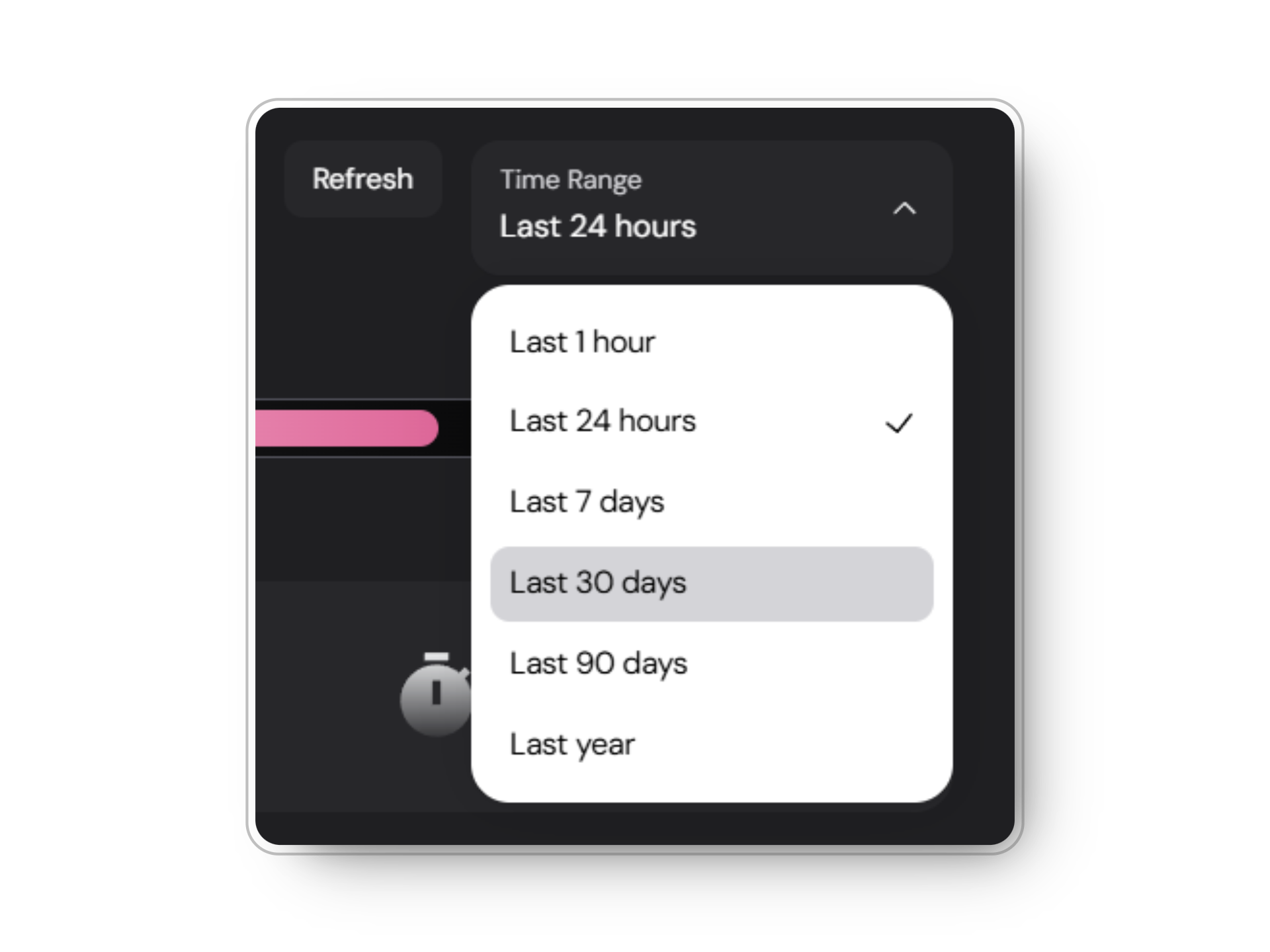
Compare Metrics
Analyze trends by comparing different metrics side by side. This allows you to identify correlations and patterns across various performance indicators.
Monitor Trends
Look for patterns in user interactions over time. This helps you understand peak usage times and general engagement patterns.
Optimize Performance
If average chat duration is high, consider ways to make your agent more efficient. This might involve refining responses or improving the knowledge base.
Enhance User Retention
Analyze the user retention graph to see where users tend to drop off and improve those areas. This can help increase overall engagement and satisfaction.
Identify Areas for Improvement
When using voiceflow, utilize metrics like “Understood Messages” to refine your agent’s comprehension. Focus on improving areas where the agent struggles to understand user inputs.